
Bynn AI Agent Validation
Bynn AI Agent Validation adds an AI-based validation step to an individual document inside a collection.
When enabled, the uploaded document is automatically checked against the criteria configured for that document. This validation runs immediately after upload and before the user can continue.
If the document does not meet the configured validation logic, the uploader is shown the result and is prompted to retry the document upload.
Where it is configured
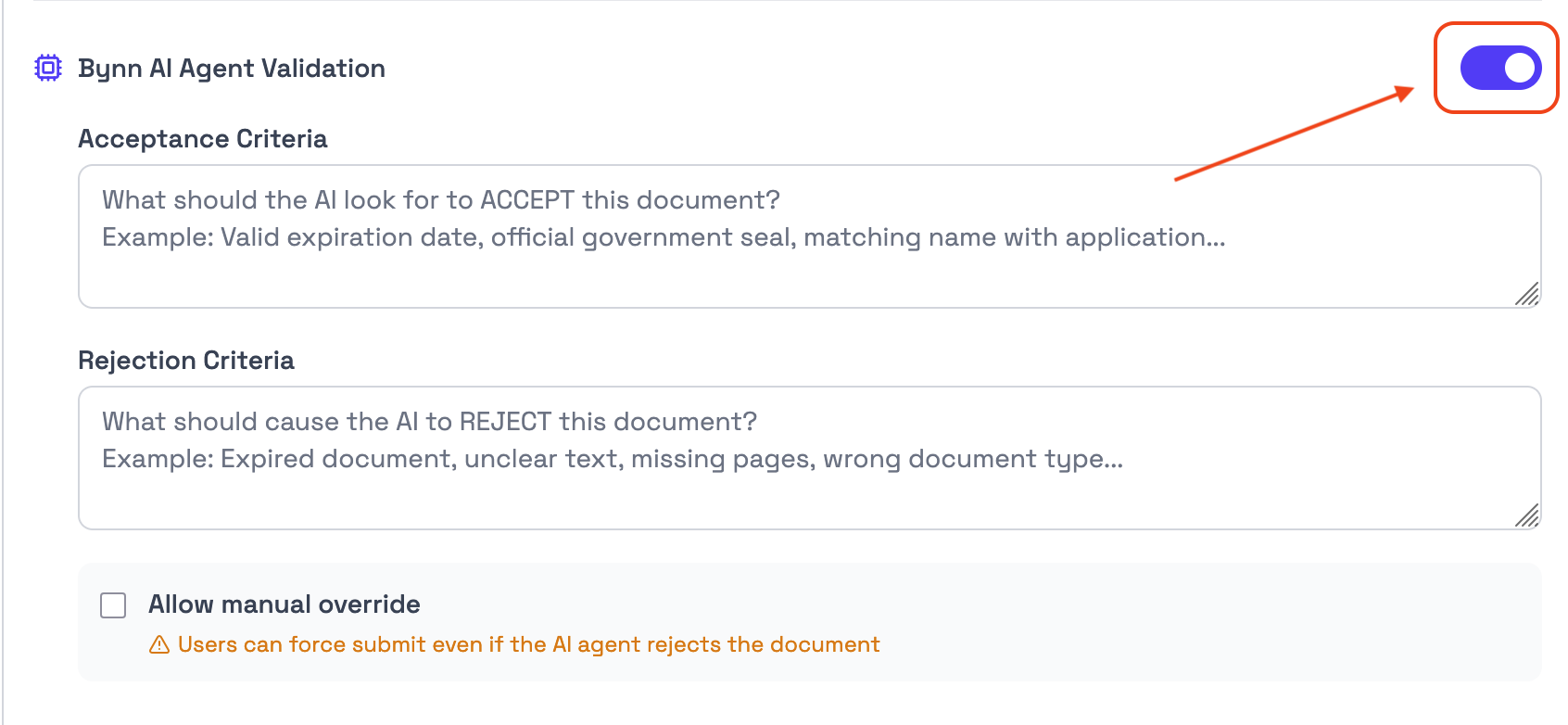
Bynn AI Agent Validation is configured inside the document settings for a specific document in a collection.
It is enabled using the Bynn AI Agent Validation toggle in the document configuration area.
Once enabled, the following fields become available:
- Acceptance Criteria
- Rejection Criteria
- Allow manual override
- Rejection Criteria
Changes only take effect after clicking Save Collection.
How it works
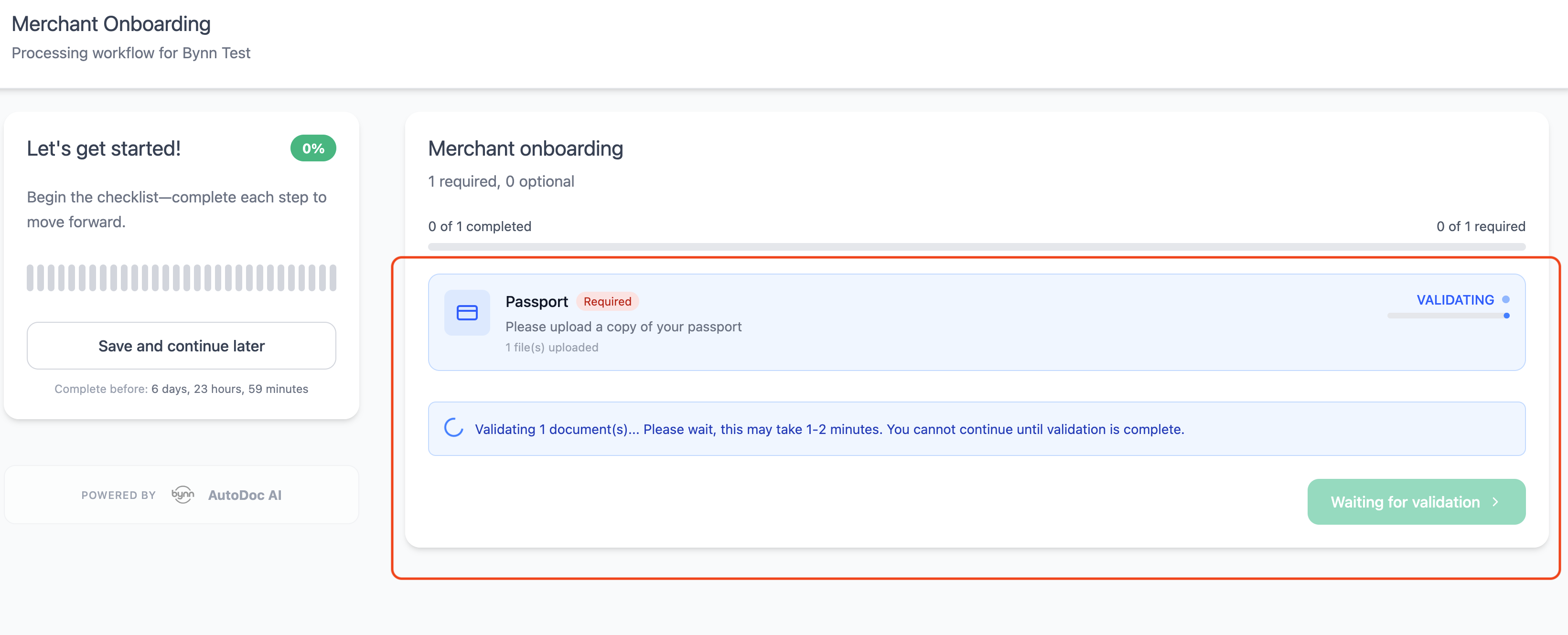
When a document is uploaded, Bynn AI Agent Validation starts automatically.
During validation, the uploader sees a validation state in the document step. The standard message shown is:
Validating 1 document(s)... Please wait, this may take 1-2 minutes. You cannot continue until validation is complete.
The uploader cannot continue while validation is in progress.
If the document passes validation, the flow continues normally.
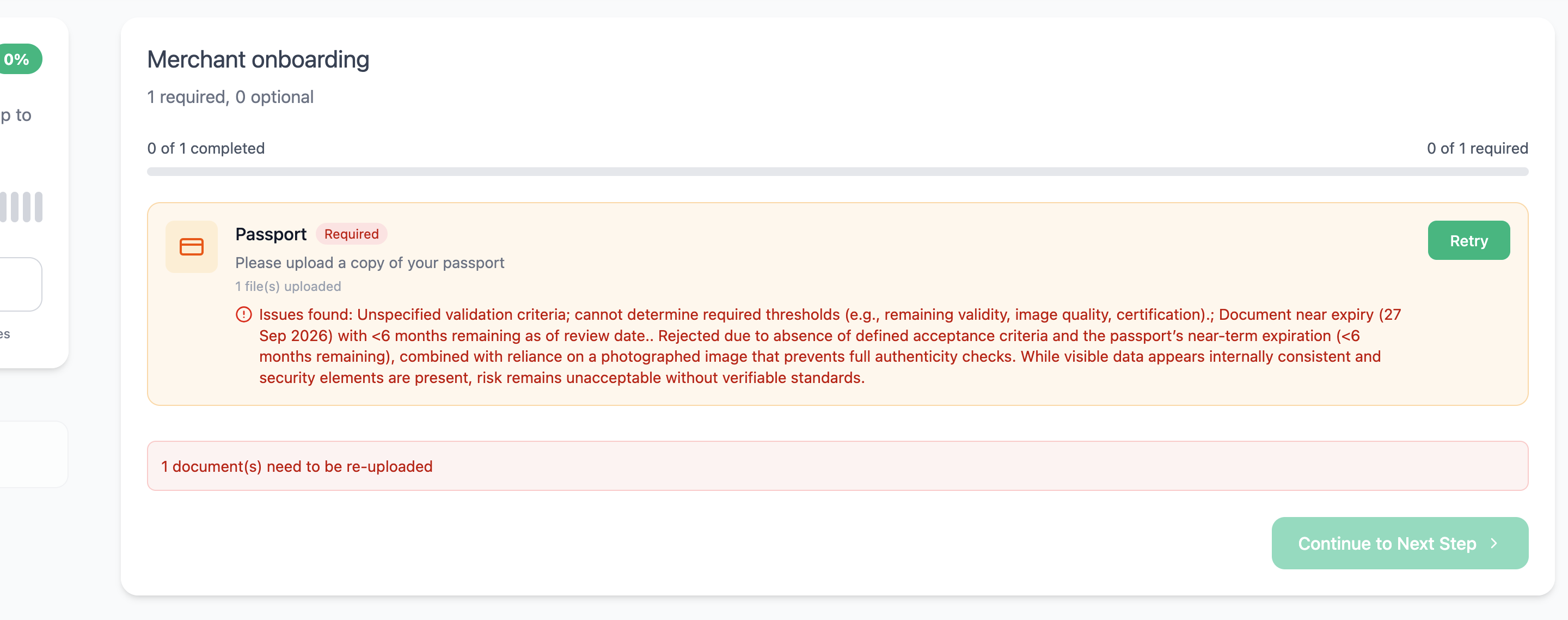
If the document fails validation, the uploader is shown the validation result together with the reason for the failure, and the document must be re-uploaded unless Allow manual override is enabled.
Acceptance Criteria
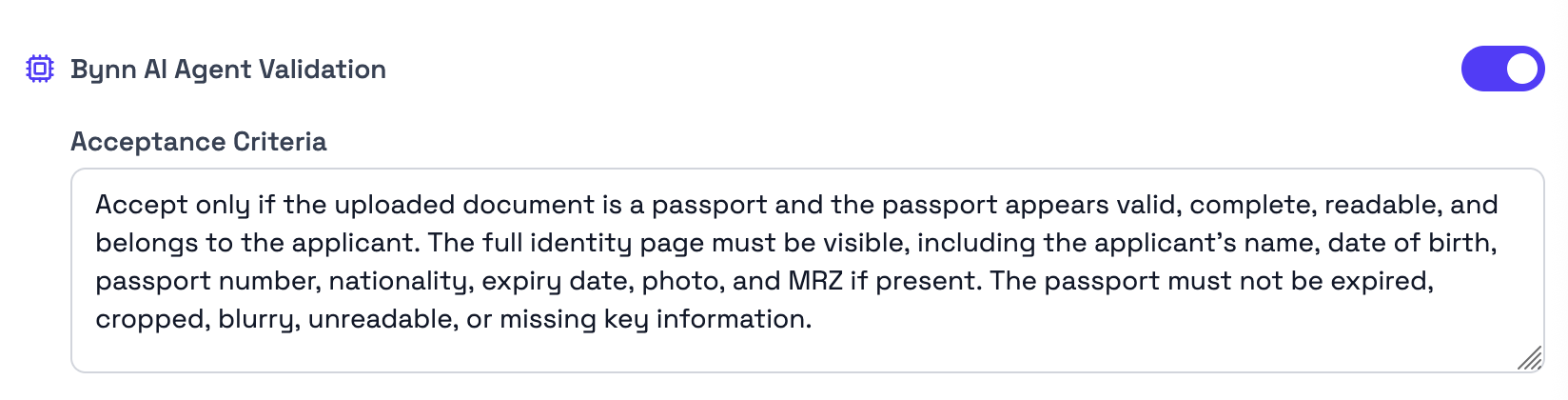
The Acceptance Criteria field defines what must be true for the document to be accepted.
This field is used to describe the conditions the AI should look for when evaluating the uploaded document.
Examples:
- Document must have a valid expiration date
- ID card must be a real government-issued identity document
- Damaged vehicle photo must clearly show an actual damaged vehicle
- Bank statement must be readable, complete, and no older than 2 months
- Invoice must contain the required fields
This field is optional.
Rejection Criteria
The Rejection Criteria field defines what should cause the document to be rejected.
This field is used to describe the failure conditions the AI should look for when evaluating the uploaded document.
Examples:
- Unclear text
- Missing pages
- Wrong document type
- Expired document
- Placeholder or sample document
- Missing key fields
- Document older than the allowed time period
This field is also optional.
Using Acceptance and Rejection Criteria
The two fields can be used in different ways:
- Acceptance Criteria defines what the document must meet
- Rejection Criteria defines what should cause the document to fail
- You can use only Acceptance Criteria, only Rejection Criteria, or both together.
If both are used, the AI evaluates the document against both sets of instructions.
Validation result shown to the uploader
If validation fails, the uploader is shown the result directly in the upload flow.
This includes:
- the document marked for retry
- an error message explaining the reason for rejection
- a message that a document needs to be re-uploaded
The uploader must upload a new file before continuing, unless Allow manual override is enabled.
If validation is still running, the uploader sees the validation state and cannot continue until the check has completed.
Allow manual override
The Allow manual override option changes what happens if the AI validation result is negative.
When Allow manual override is enabled, a failed AI validation result does not block the uploader from continuing. The document remains saved even if the validation result would otherwise reject it.
In that case:
- the document is saved
- it is not shown to the uploader as declined
- the uploader is not blocked by the failed validation result When enabled, validation still runs, but a negative validation result does not block the uploader from continuing.
Validation order with Fraud Detection
Bynn AI Agent Validation can be used together with Bynn Document Fraud Detection on the same document.
If both are enabled, the order is:
- Bynn AI Agent Validation
- Bynn Document Fraud Detection
This means the document is validated first, and fraud detection runs afterwards.
A document can therefore pass AI Agent Validation and still be rejected later by fraud detection if fraudulent content is detected.
Example
A passport document can use Bynn AI Agent Validation to check whether:
- the uploaded document is actually a passport
- the text is readable
- the expiration date is valid
- the document content matches the expected type
For example:
Acceptance Criteria
- Passport must be valid and have a future expiration date
- Text must be readable
- Document must be a real passport
Rejection Criteria
- Passport is expired
- Text is unclear
- Wrong document type
- Placeholder or sample image
- Missing required identity information
If the uploaded passport is expired, the uploader is shown the validation result and is prompted to upload a new file.
Updated 5 months ago