
Configure documents
The document section is where the requested documents are added to the collection. Each document added here becomes an individual document request inside the collection. A collection can contain both required and optional documents, and there is no limit to how many documents can be added.
Add a document
To add a document to a collection, click Add Document in the document section.
A new document block is then added to the collection and can be configured individually.
Each added document becomes a separate request inside the collection. If multiple documents are added, they are all included as part of the same collection when that collection is used in a workflow.
A collection must contain at least one document before it can be used for testing or inside a workflow.
Document fields
Each document includes its own set of configuration fields.
The available fields are:
- Document name
- Description / Instructions
- Document Type
- Requirement
- Upload Count
- File Type Restrictions
These fields define how that document is presented and handled in the collection.
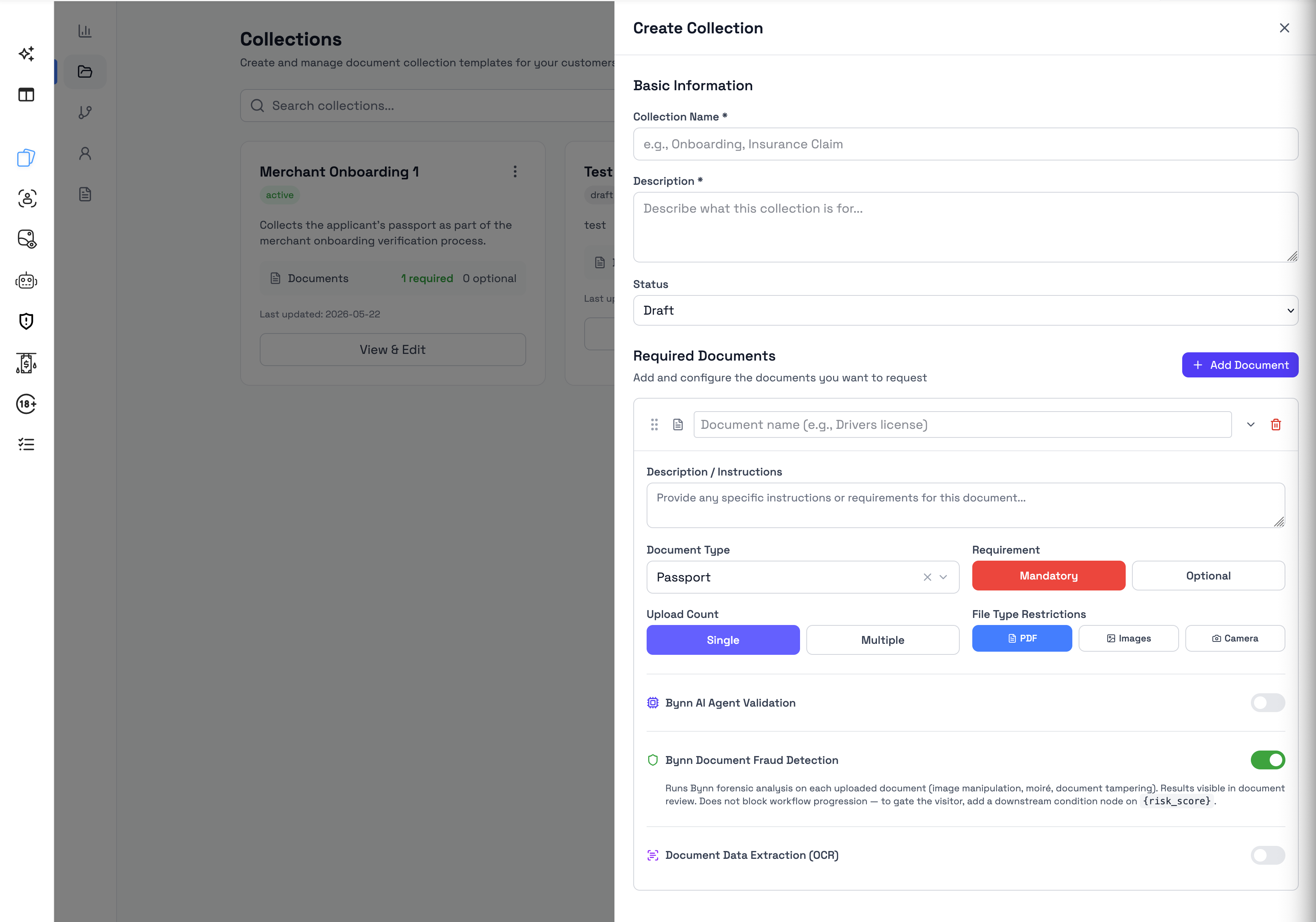
Document name
The Document name field defines the name of the document request shown to the user.
This is the main label the user sees when they are asked to upload a file, so it should clearly describe what document is expected. It is also used to distinguish that document request from the other documents in the same collection.
For example, instead of using a broad label such as License, the document name can be set to something more specific such as Taxi License, Passport, or Bank Statement.
Description / Instructions
The Description / Instructions field is additional text shown to the user for that document request.
It is used to provide more context or explain what should be uploaded. This field is useful when the document name alone is not enough, or when the user needs additional guidance before uploading the file.
For example, this field can be used to clarify:
- which version of a document is required
- whether the document must be valid or up to date
- whether both sides of a document should be included
- whether a photo, scan, or PDF is expected
Document Type
The Document Type field classifies what the user is expected to submit for that document request.
This is selected for each document and can differ between documents in the same collection.
Requirement
The Requirement field controls whether the document is configured as:
- Mandatory
- Optional
A collection can contain both mandatory and optional documents at the same time.
Upload Count
The Upload Count setting controls whether the uploader can submit one file or multiple files for the selected document.
The available options are:
- Single
- Multiple
When Single is selected, one file can be uploaded for that document.
When Multiple is selected, the uploader can submit more than one file for the same document request, subject to the configured file type restrictions and upload size limit.
The maximum total upload size for a document request is 25 MB.
Only available for a certain type of documents, such as Invoice, Business License.
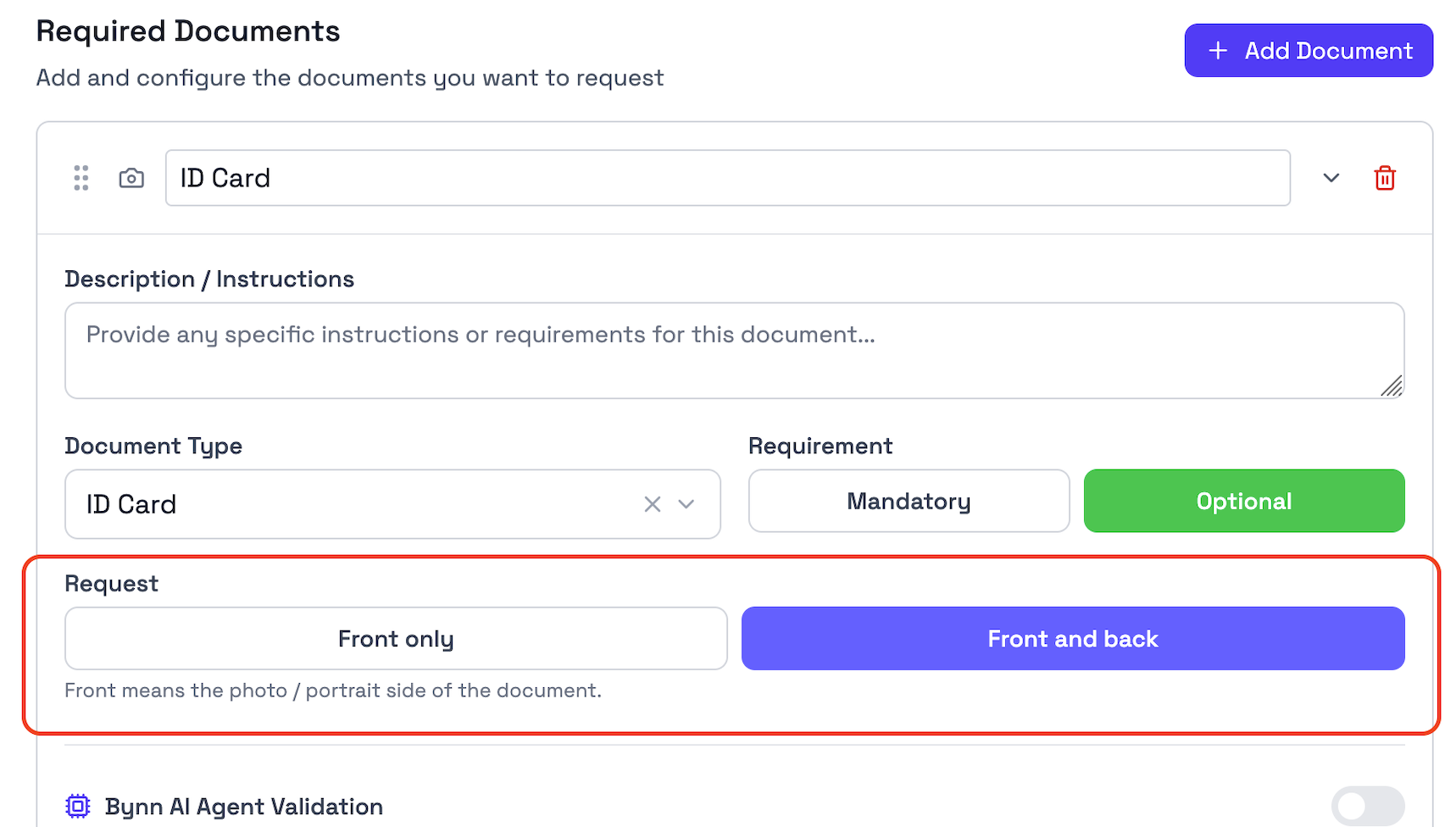
Request
The Request setting controls whether the uploader can submit one or multiple sides of a document. This is specifically used for documents such as ID cards, Driver license.
The available options are:
- Front only
- Front and back
File Type Restrictions
The File Type Restrictions setting controls which file formats or input methods are accepted for a document.
The available options are:
- Images
- Camera
For image uploads, the supported formats are:
- PNG
- JPG
- JPEG
More than one file type can be enabled at the same time. When several file type options are enabled and Upload Count is set to Multiple, the uploader can submit multiple files in different supported formats within the same document request.
Configure multiple documents in one collection
A single collection can contain multiple document requests.
For example, the same collection can include:
- one identity document
- one license
- one bank statement
- one insurance document
Each document is added and configured separately inside the same collection.
Because there is no document limit, collections can be built with as many document requests as needed.
Click + Add Document to include several documents in the same collection.
Advanced document options
In addition to the standard document fields, each document can also include advanced options such as:
- Bynn AI Agent Validation
- Bynn Document Fraud Detection
- Document Data Extraction (OCR)
These options are covered in more detail in Document options and rules and Bynn AI Agent Validation.
Updated 4 months ago