
Workflow Runtime and Launch
About Workflow Runtime and Launch
Workflow runtime and launch define what happens after a workflow is saved and used in Bynn’s Intelligent Data Collection Tool.
This includes how a workflow is started, how a submission is created, how the case remains active while the flow is being completed, and how the workflow reaches a final state.
A workflow can be launched through its Data Collection Link or through another supported trigger, depending on how the workflow has been configured.
Data Collection Link
Each workflow has one Data Collection Link.
This link is the main launch method for visitor-based workflows and can be copied directly from the workflow card. It remains stable when the workflow is re-saved and is currently always available for the workflow.
The Data Collection Link is tied to the workflow itself. It is not regenerated when the workflow is updated, and multiple links do not currently exist for the same workflow.
Launching a Workflow
When a workflow is launched through the Data Collection Link, the user opens the workflow URL and is then taken into the live runtime flow for that specific case.
Launch behavior can also depend on the trigger type used in the workflow. For example, visitor-based flows are typically launched through the Data Collection Link, while other workflows may begin through supported trigger-based events such as a webhook.
The launch method determines how the case begins, but once the workflow starts, the configured nodes control how the case moves through the process.
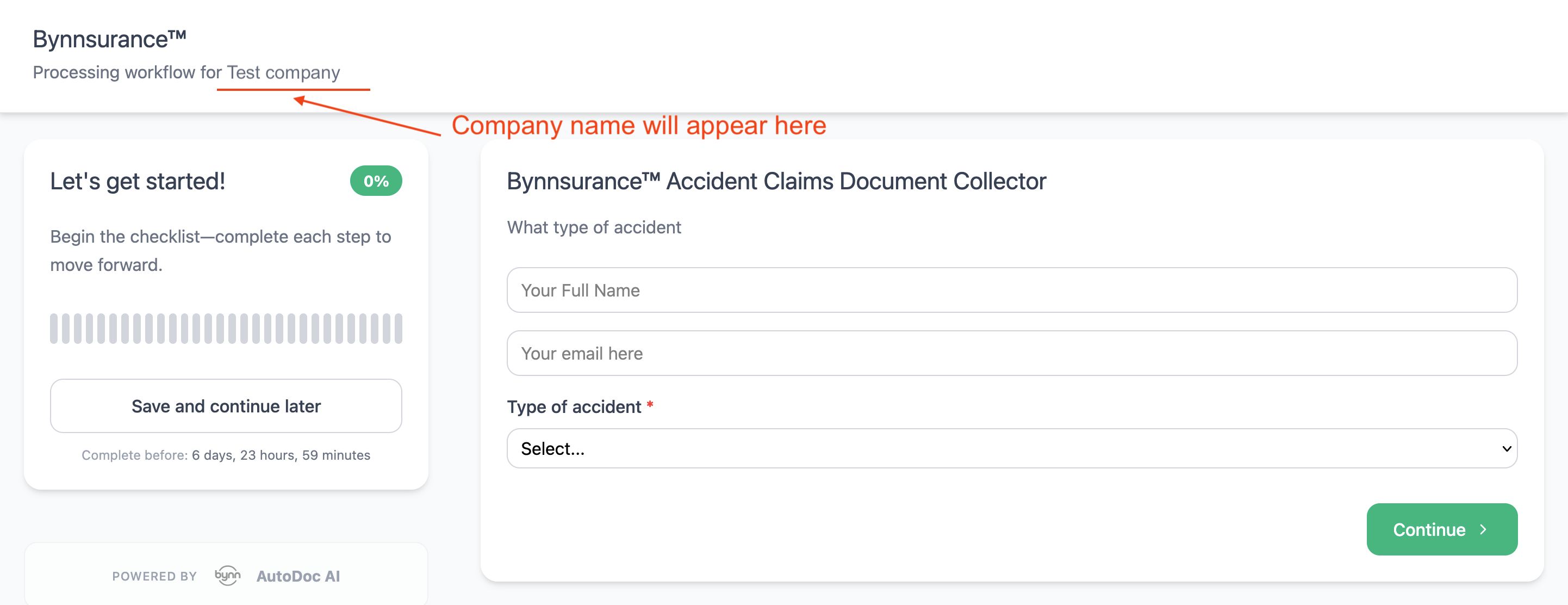
Submission Creation
A new submission is created as soon as the workflow is launched.
For visitor-based workflows, this happens when the workflow link is opened. At that point, the workflow run becomes a live case in Submissions, where it can be tracked while it is in progress and reviewed again after it is completed.
Each launch creates a separate submission. This allows the same workflow to be used repeatedly, with each launch creating a new submission.
In Progress State
Once created, the submission enters the In Progress state.
It remains in progress while the workflow is still active and has not yet reached a final outcome. During this stage, the user moves through the configured steps in the workflow, and the case continues according to the configured logic.
The user can also use Save and continue later while the submission is still in progress. This allows the same submission to be resumed before the workflow reaches its final state.
Timeout Behavior
Timeout behavior depends on how the workflow nodes have been configured.
Some nodes can include timeout handling, which allows the workflow to move through a different path if the expected step is not completed in time. What happens after a timeout depends on the structure of the workflow and the node configuration used.
Because timeout is defined within the workflow itself, the runtime behavior can vary between different workflows.
Completed State
A submission becomes Completed when the workflow reaches a final outcome.
This currently applies when the flow reaches either APPROVE or REJECT. At the submission level, both outcomes are reflected as Completed, although this may change in future versions.
If the workflow includes user-facing display screens before the final terminal node or at the same step, those screens usually define what the user sees at the end of the process.
Workflow Updates and Version Behavior
Saving a workflow updates the live version immediately.
New launches use the latest saved version of the workflow. If a submission is already in progress when the workflow is updated, that submission can continue according to the newly saved version when it advances to its next step.
This means workflow changes can affect both future runs and active runs that have not yet completed all remaining steps.
Updated 4 months ago