
Orchestrator Agent
Orchestrator Agents coordinate Agentic Fraud Reasoning for selected document types.
Use this page as a reference for the Orchestrator Agents area in the dashboard. For first-time setup, see the Quick start guide.
Orchestrator Agents page
The Orchestrator Agents page shows the orchestrators available in your workspace.
From this page, admins can:
- view existing orchestrators
- see which orchestrators are active
- review assigned document types
- review assigned Fraud Analysis Agents
- test an orchestrator
- configure an orchestrator
- delete an orchestrator
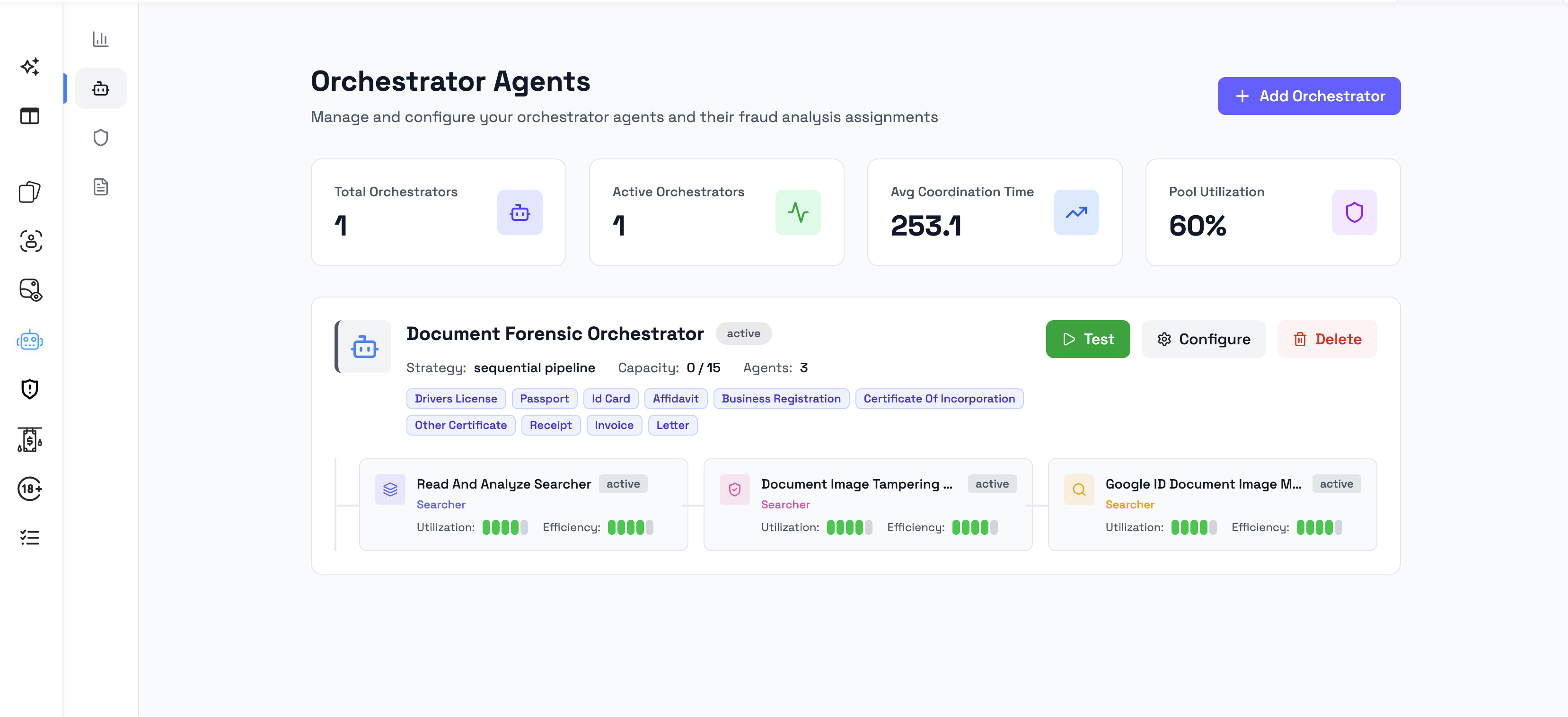
Overview metrics
The top of the Orchestrator Agents page can show summary metrics for the workspace.
| Metric | Description |
|---|---|
| Total Orchestrators | Total number of orchestrators in the workspace. |
| Active Orchestrators | Number of orchestrators currently active. |
| Avg Coordination Time | Average time used to coordinate an analysis. |
| Pool Utilization | Current utilization of the orchestrator pool. |
These metrics help admins understand the overall state and usage of orchestrators in the workspace.
Orchestrator card
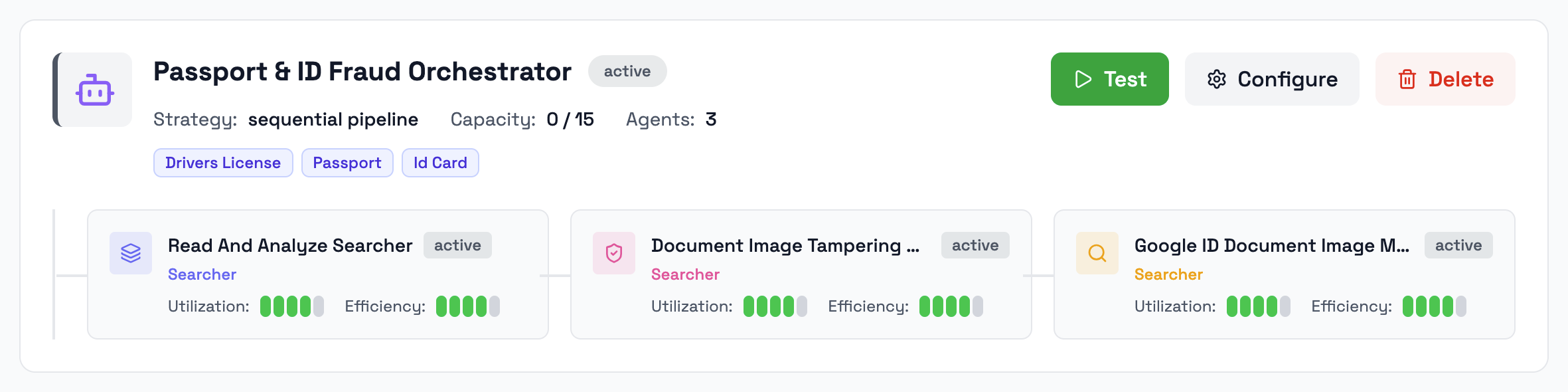
Each orchestrator is displayed as a card.
An orchestrator card can show:
| Field | Description |
|---|---|
| Name | The orchestrator name. |
| Description | A short explanation of what the orchestrator is designed to do. |
| Status | Whether the orchestrator is active or inactive. |
| Strategy | The coordination strategy used by the orchestrator. |
| Capacity | The current or configured capacity shown for the orchestrator. |
| Agents | The number of Fraud Analysis Agents connected to the orchestrator. |
| Document Types | The document types assigned to the orchestrator. |
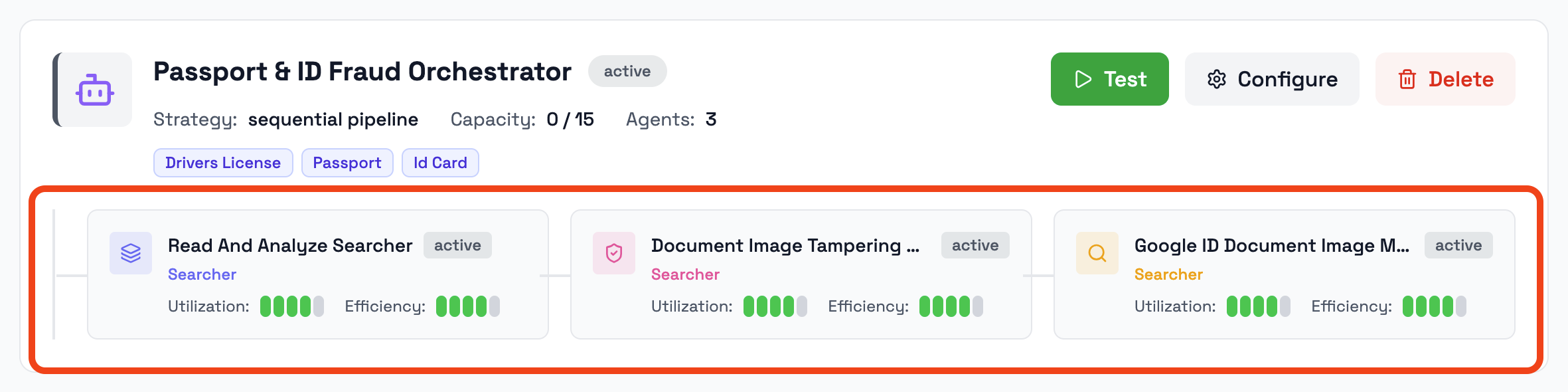
| Assigned Agents | A preview of the Fraud Analysis Agents connected to the orchestrator. |
The card gives admins a quick overview of what the orchestrator is used for and whether it is ready to analyze matching documents.
Document types
Document type tags show which documents the orchestrator can analyze.
For example, an orchestrator may be assigned to document types such as:
- Passport
- ID Card
- Driver License
- Bank Statement
- Invoice
When a submitted document matches one of the assigned document types, the orchestrator can be used for Agentic Fraud Reasoning.
Use document type assignments to make sure each document is analyzed by an orchestrator designed for that type of document.
Assigned Fraud Analysis Agents
An orchestrator works with one or more Fraud Analysis Agents.
Fraud Analysis Agents perform specific analysis roles. The orchestrator coordinates their findings and combines them into the final fraud reasoning result.
The assigned agents shown on an orchestrator help admins understand which specialized agents may contribute to the analysis.
For example, an orchestrator may include agents with roles such as:
- searcher
- crawler
- analyzer
- validator
- enricher
- aggregator
The available agent types depend on the workspace configuration.
Detailed agent setup is covered in the Fraud Analysis Agents guide.
Orchestrator actions
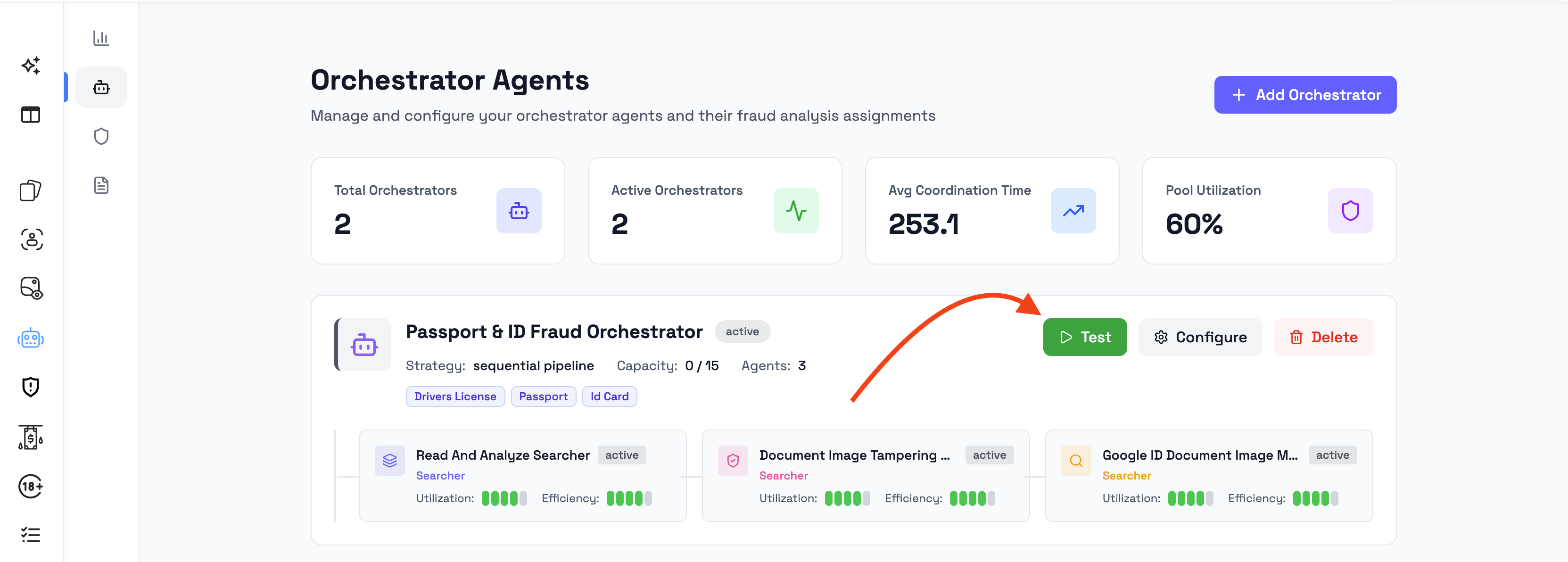
Each orchestrator card can include actions such as:
| Action | Description |
|---|---|
| Test | Runs a test of the orchestrator configuration, if available. |
| Configure | Opens the orchestrator configuration flow. |
| Delete | Deletes the orchestrator from the workspace. |
The available actions may depend on the orchestrator status, workspace configuration, and user permissions.
Test
Use Test to check that an orchestrator is configured correctly before relying on it for live document review.
Testing is useful when:
- the orchestrator has just been created
- document types have been changed
- Fraud Analysis Agents have been added or removed
- the orchestrator configuration has been updated
- re-running an already reasoned document
Configure
Use Configure to update an existing orchestrator.
The configuration flow can include:
- Describe
- Review Prompt
- Doc Types
- Access
- Select Agents
- Customize
Use this flow to update what the orchestrator does, which document types it applies to, which agents it uses, whether it is private or public, and how it appears in the dashboard.
For the full first-time setup flow, see the Quick start guide.
Delete
Use Delete to remove an orchestrator from the workspace.
Before deleting an orchestrator, check whether it is assigned to document types currently used in your fraud reasoning setup.
Deleting an orchestrator may prevent Agentic Fraud Reasoning from running for document types that depended on it, unless another orchestrator is configured for those document types.
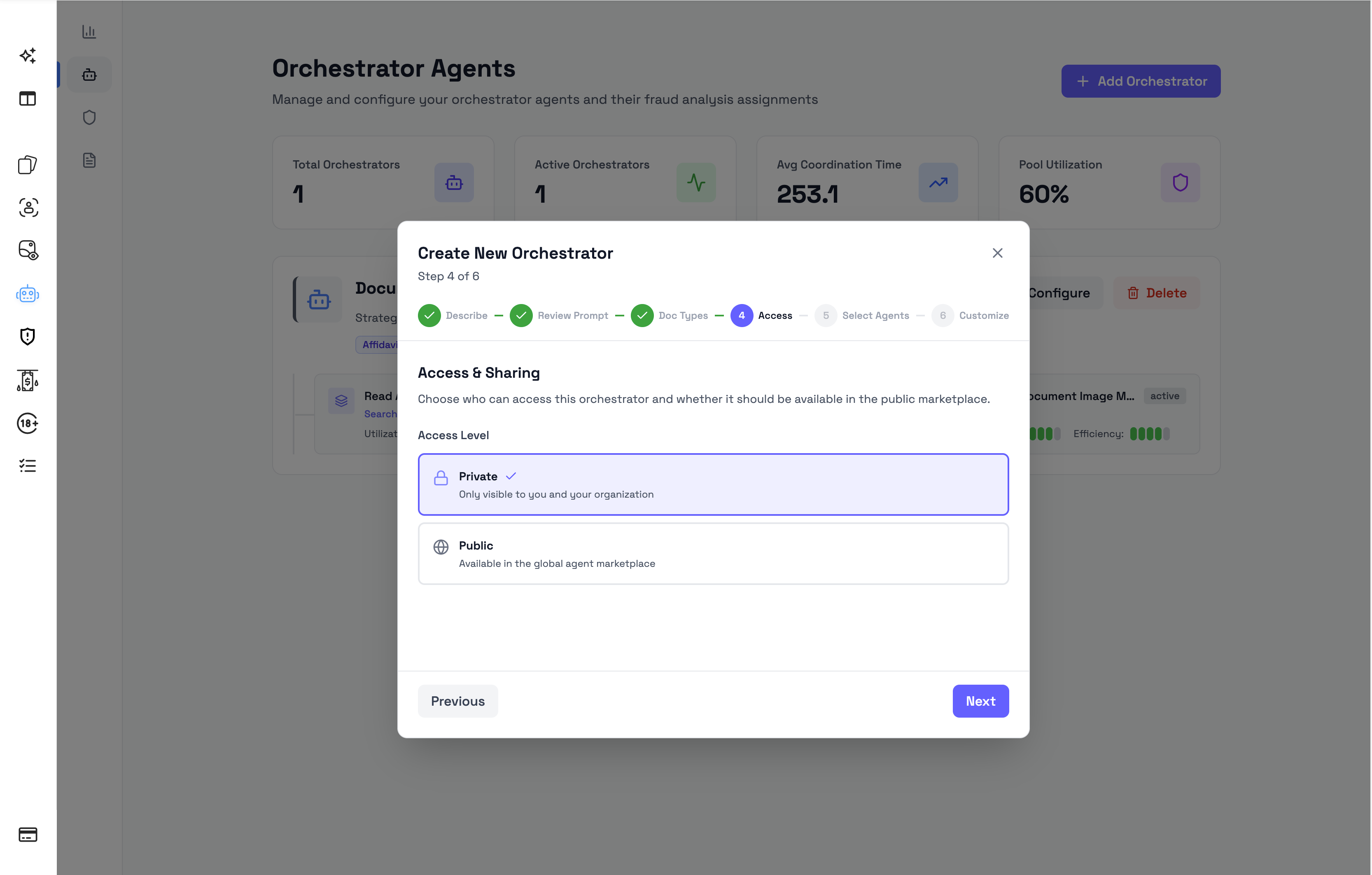
Access levels
Orchestrators can be configured as Private or Public.
| Access level | Description |
|---|---|
| Private | Only visible to you and your organization. |
| Public | Available in the global agent marketplace, where other organizations can discover and use it. |
Use Private for orchestrators that are specific to your organization, internal review process, or custom fraud analysis setup.
Use Public when the orchestrator is designed for a broader fraud detection use case and may be useful to other organizations. Sharing high-quality orchestrators in the marketplace can help improve fraud prevention across similar document review workflows.
Customization
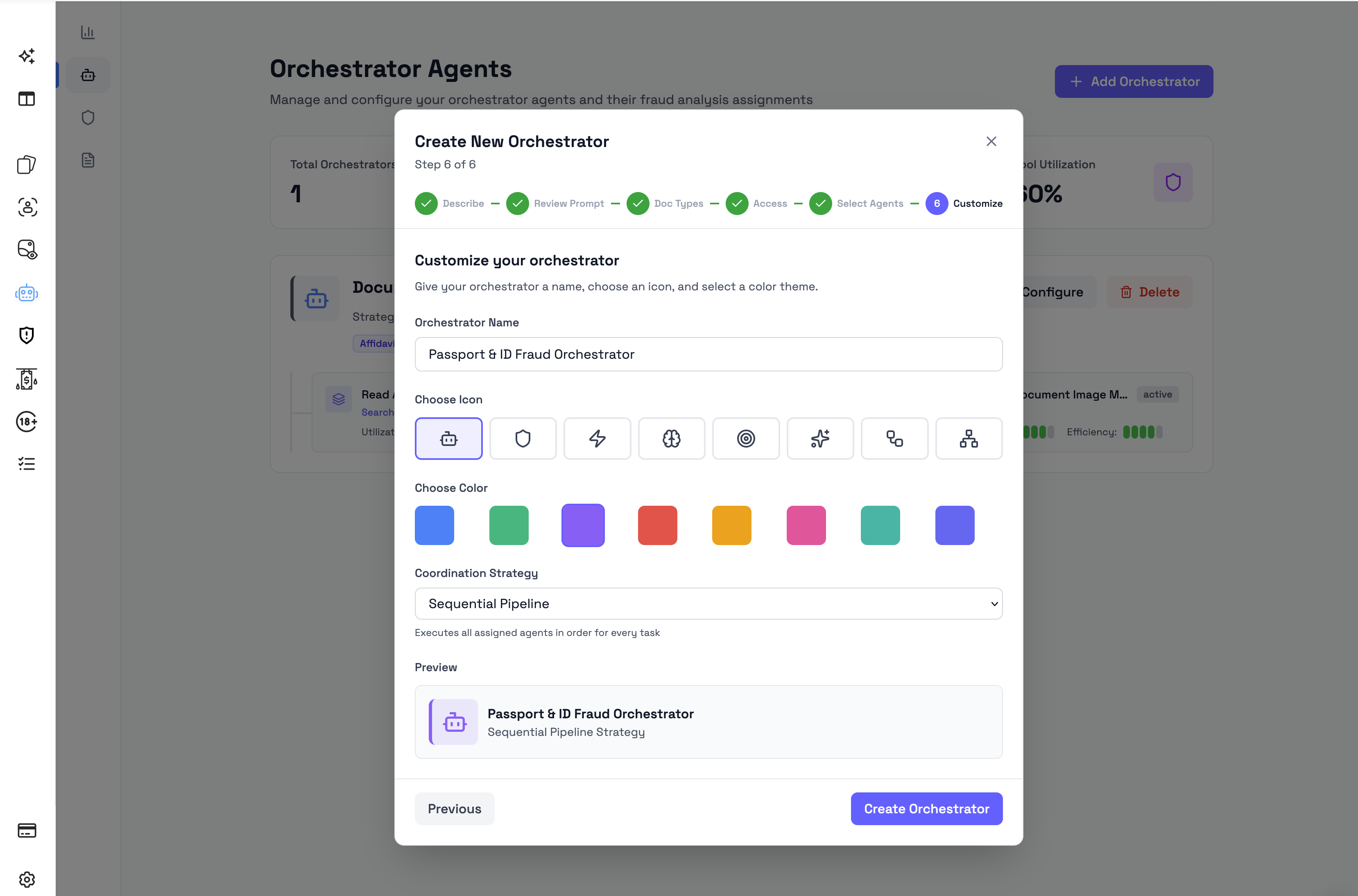
The Customize step controls how the orchestrator appears in the dashboard.
You can configure:
- Orchestrator Name
- Icon
- Color
- Coordination Strategy
The preview shows how the orchestrator will appear after it is saved.
Updated 3 months ago