
Workflow Submissions
About Workflow Results and Submissions
Submissions is where workflow submissions are reviewed in Bynn’s Intelligent Data Collection Tool.
A new submission is created each time a workflow is launched. Submissions can be reviewed while they are still in progress and after they have been completed.
As steps are completed in the workflow, submitted data and uploaded documents become available in the submission. This means a submission can already contain saved results even if the workflow has not yet reached its final outcome.
Submission Statuses
Submissions track status through two separate status fields:
Workflow Status (Execution State)
These statuses track where the workflow is in its lifecycle:
- Pending — Submission created but workflow not yet started
- In Progress — Workflow is active and running
- Completed — Workflow reached a terminal outcome
- Failed — Workflow encountered an error and stopped
- Awaiting Approval — Workflow paused waiting for human review
Final Outcome Status (Business State)
Once a workflow completes, the submission receives a final status:
- Approved — Workflow reached the APPROVE terminal node
- Rejected — Workflow reached the REJECT terminal node
- Needs Attention — Workflow reached the NEEDS ATTENTION terminal node
How Status Works
A submission begins in Pending and moves to In Progress when the workflow starts. As the workflow progresses, it remains In Progress. Once the workflow reaches a terminal outcome (APPROVE, REJECT, or NEEDS ATTENTION), the workflow_status changes to Completed and the final outcome status (approved/rejected/needs_attention) is set.
The submission list displays both the workflow execution state and the final outcome, allowing you to see both whether a workflow is running and what the ultimate result was.
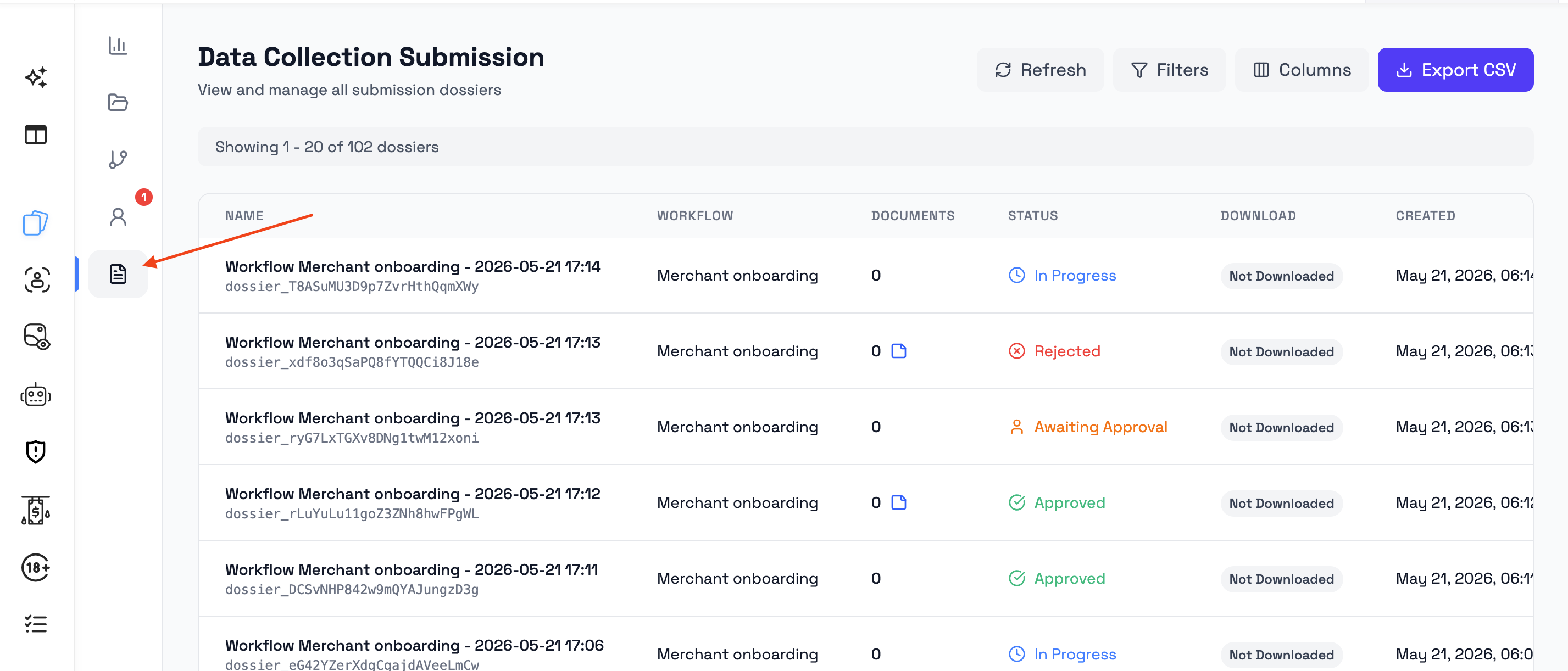
Submission List View
The submission list provides an overview of existing submissions and supports filtering and review at scale.
The list currently includes the following main columns:
- Name
- Workflow
- Documents
- Status
- Download
- Created
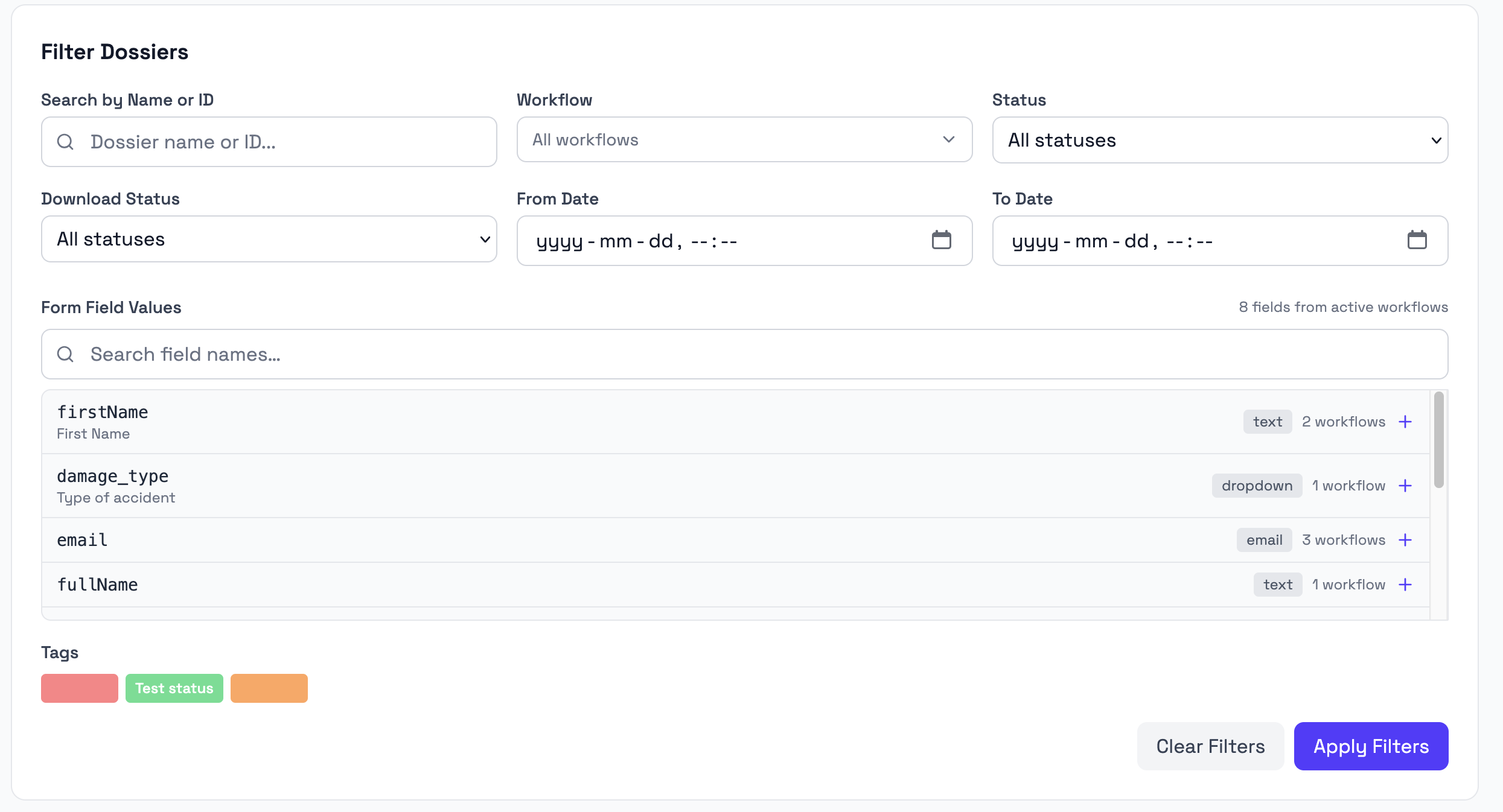
At the top of the page, submissions can be filtered by fields such as name or ID, workflow, completion status, download status, dates, and tags. This makes it easier to locate specific submissions or narrow the list to a particular workflow, timeframe, or result set.
The list view also supports column selection and CSV export.
Filtering and Tags
The submission list includes filtering options to help narrow down large result sets.
Filters currently include search by name or ID, workflow, completion status, download status, date range, and tags. These filters can be applied together to find a more specific set of submissions.
Tags can also be managed at submission level. A submission can have tags added, edited, and reviewed from its detail view, and tags can also be used as part of filtering in the submission list.
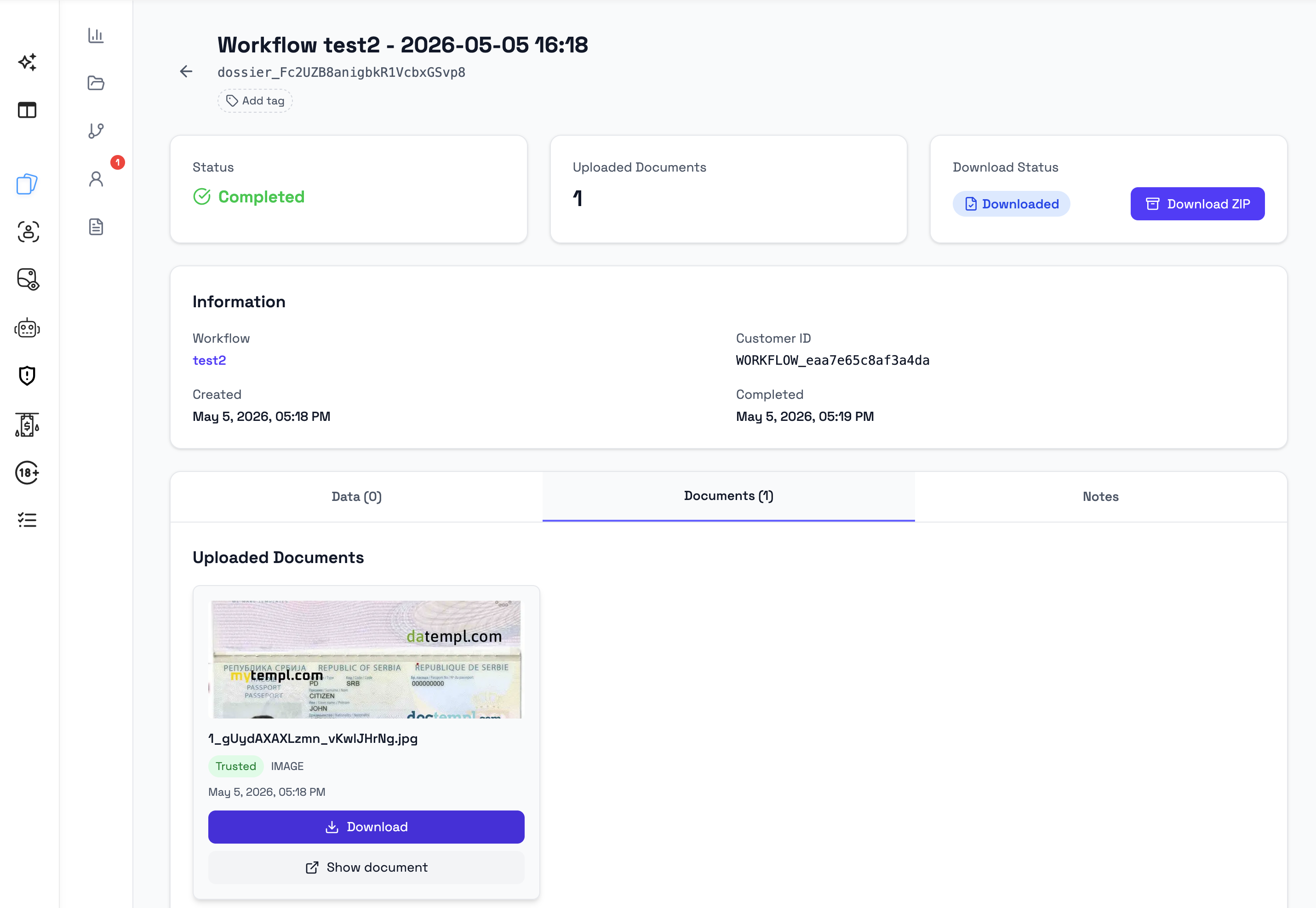
Submission Detail View
Selecting a submission opens its detail view.
This view provides a more complete view of the submission, including summary cards, workflow information, collected data, uploaded documents, and download options.
The detail view currently includes fields such as:
- Completion Status
- Uploaded Documents
- Download Status
- Workflow
- Customer ID
- Created
- Completed
It also includes Data and Documents tabs for reviewing collected values and uploaded files.
Tags can also be added and edited directly from the submission detail view.
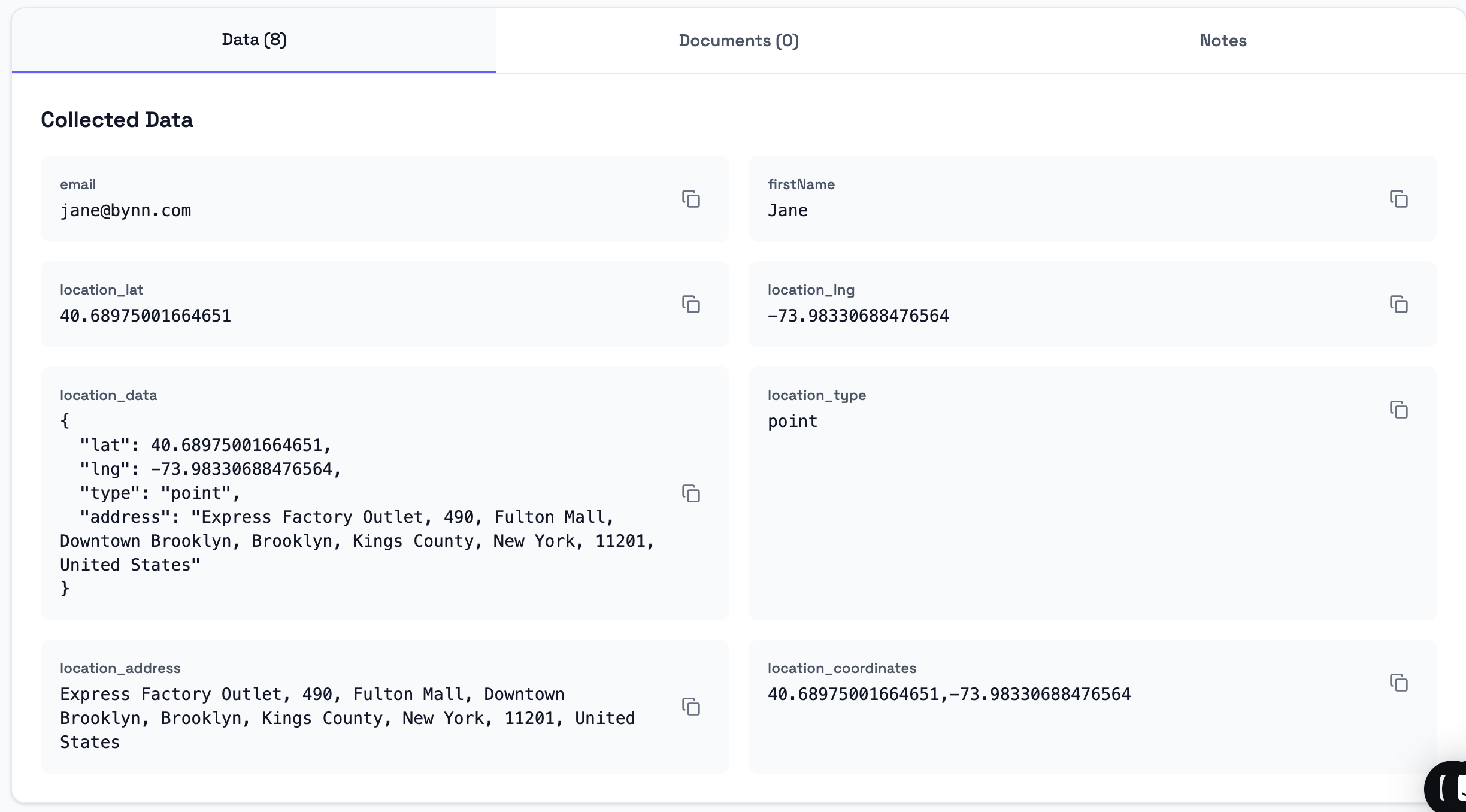
Documents and Data
Submission details can contain both collected data and uploaded files.
The Data tab shows values that have already been submitted through the workflow. The Documents tab shows uploaded files that are associated with the submission.
Because submitted results are saved as the workflow progresses, a submission can already contain partial data even while its overall status is still In Progress.
Downloading and Previewing Files
Uploaded files can be opened and downloaded from the submission detail view.
Where documents are available, users can open them for preview and download individual files. Submissions can also provide ZIP download functionality through the submission detail view.
Download status is also shown in the submission and can be used as a filter in the submission list.
Current Status Handling
Submission Statuses
Submissions display their status throughout their lifecycle. The following statuses are currently supported:
The workflow status tracks the progression of the visitor through the workflow:
- In Progress - Visitor is actively progressing through the workflow
- Completed - Visitor reached a final outcome (Approve, Reject, or Needs Attention node)
- Rejected - Workflow completed with rejection outcome. (When the workflow reaches a REJECT terminal node. Could also reach this status after admin reviewed and rejected it.)
- Needs Attention - Workflow completed with special handling required. When the workflow reaches a NEEDS ATTENTION terminal node
- Awaiting Approval – Workflow is paused at an approval node, waiting for admin review
How Status Works
During Workflow Execution:
- A submission starts in Draft status when created
- It transitions to In Progress when the end user first opens and begins the workflow
- It remains In Progress as the workflow processes
At Workflow Completion:
- When the workflow reaches a terminal outcome, the submission receives a final status:
- Approved if the APPROVE node was reached
- Rejected if the REJECT node was reached
- Needs Attention if the NEEDS ATTENTION node was reached
After Completion:
- Final status (Approved/Rejected/Needs Attention) is preserved for audit and reporting
Updated 4 months ago