
Document Data Extraction
Document Data Extraction extracts specific values from submitted documents and saves them as workflow variables.
When enabled, Bynn uses OCR technology to read the submitted document and extract the fields configured for that document. The extracted values can then be used later in the workflow, for example in conditions, decisions, notifications, HTTP requests, or other workflow steps that support variables.
Document Data Extraction does not decide whether a document should be accepted or rejected. It only extracts and stores the requested values.
How it works
Document Data Extraction runs after the document has been submitted and processed through the validation pipeline.
If other document checks are enabled, the execution order is:
- Bynn AI Agent Validation
- Bynn Document Fraud Detection
- Document Data Extraction
Document Data Extraction runs after AI validation and fraud detection. It still runs even if fraud detection fails and the uploader is prompted to retry the document.
This means extracted data may still be available even when the document does not pass other checks.
Fields to extract
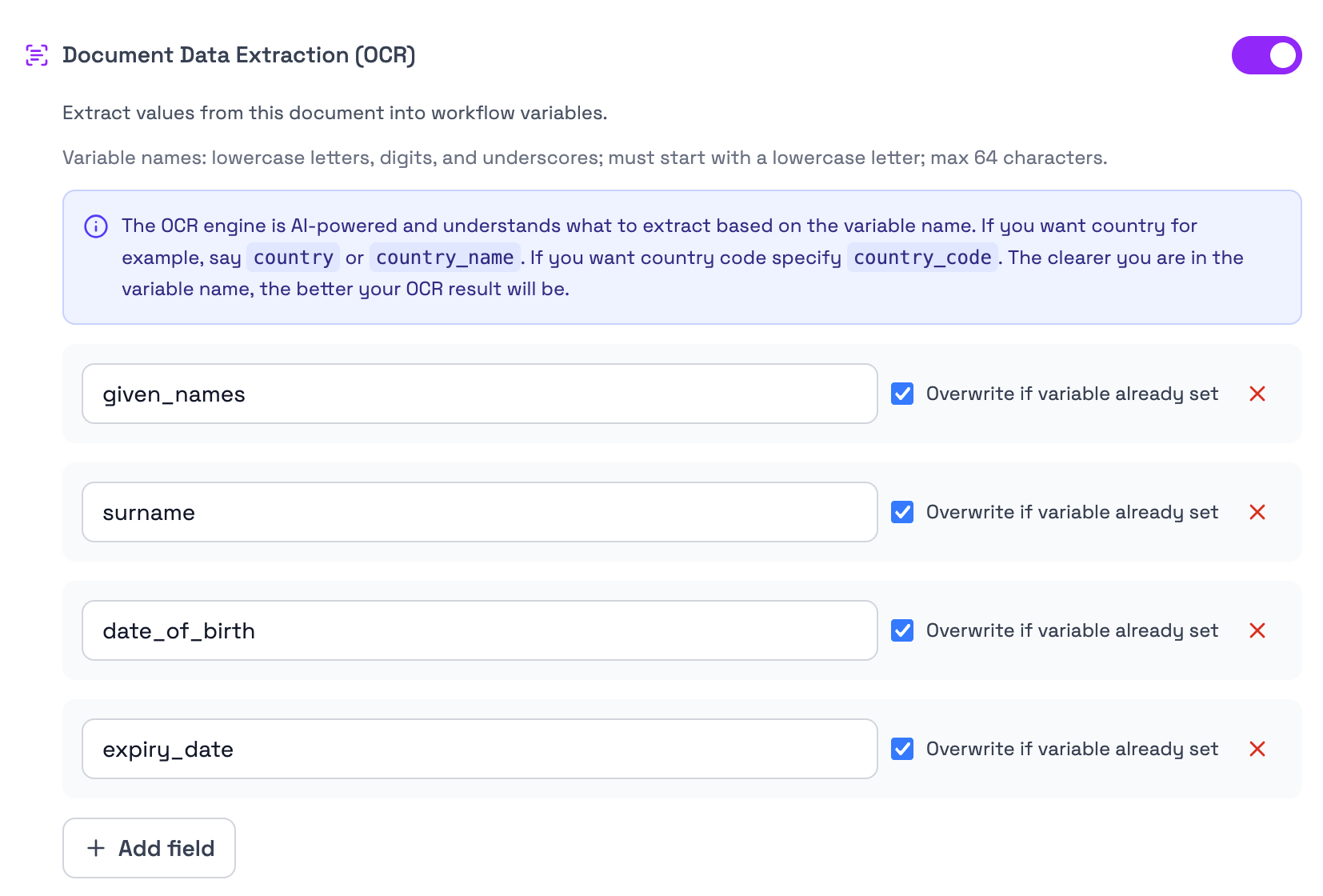
When Document Data Extraction is enabled, the document configuration shows a list of fields to extract.
Each field represents a workflow variable that Bynn should attempt to populate from the submitted document.
For example, an ID document may be configured to extract:
given_namessurnamedate_of_birthexpiry_date
The extraction engine uses the variable name to understand what information should be extracted. Clear and specific variable names improve the quality of the extraction.
For example:
- use
countryif you want the country name - use
country_codeif you want the country code - use
expiry_dateif you want the document expiry date - use
date_of_birthif you want the person’s birth date
Variable names
Variable names must follow the required format shown in the UI.
Variable names:
- must use lowercase letters, digits, and underscores
- must start with a lowercase letter
- can be up to 64 characters long
Examples of valid variable names:
given_namessurnamedate_of_birthexpiry_datecountrycountry_codedocument_number
Add field
Use Add field to add another value that should be extracted from the uploaded document.
Each added field creates a new extraction target. When the document is processed, Bynn attempts to extract a value for each configured field.
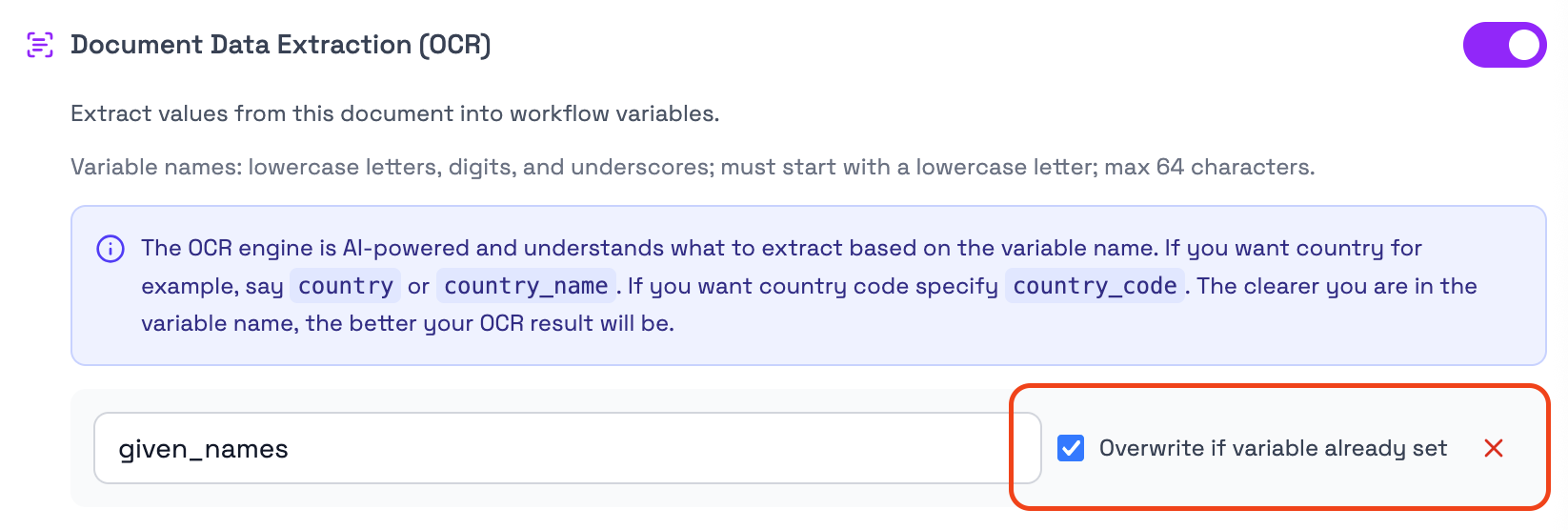
Overwrite if variable already set
The Overwrite if variable already set option controls what happens if the workflow variable already contains a value.
When enabled, the extracted value from the document can replace the existing value.
When disabled, the existing variable value is kept if it has already been set earlier in the workflow.
This is relevant when the same variable may be populated from more than one source, such as form input, identity verification, or another document extraction step.
Where extracted data appears
Extracted values are written to the submission’s workflow variables.
They are available in:
- the Data tab in the submission details
- the individual document record for reference
The extracted variables can also be used by later workflow steps that support workflow variables.
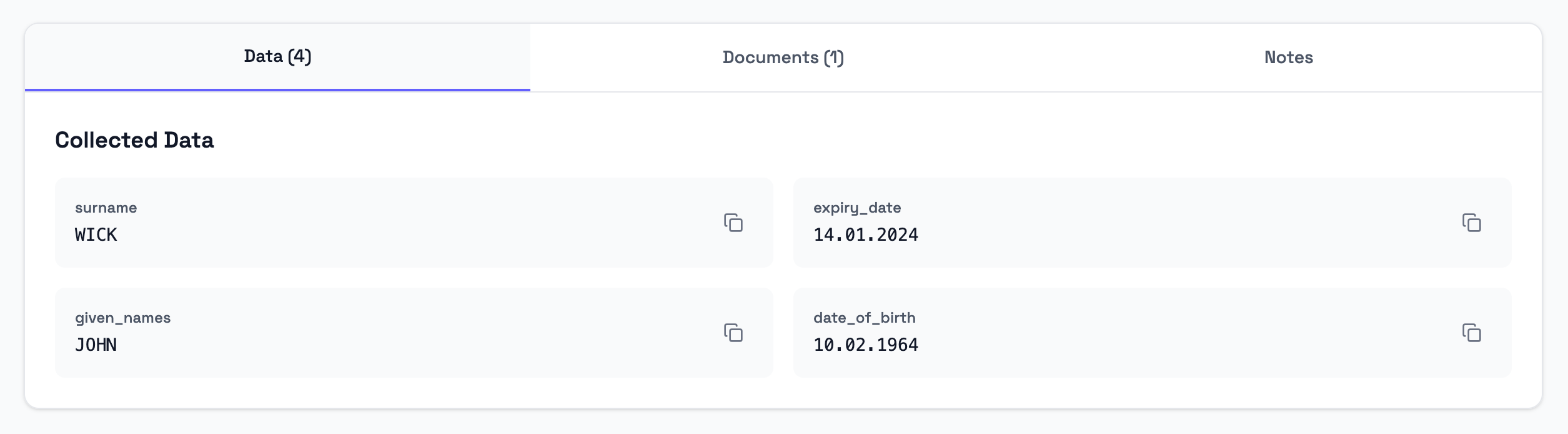
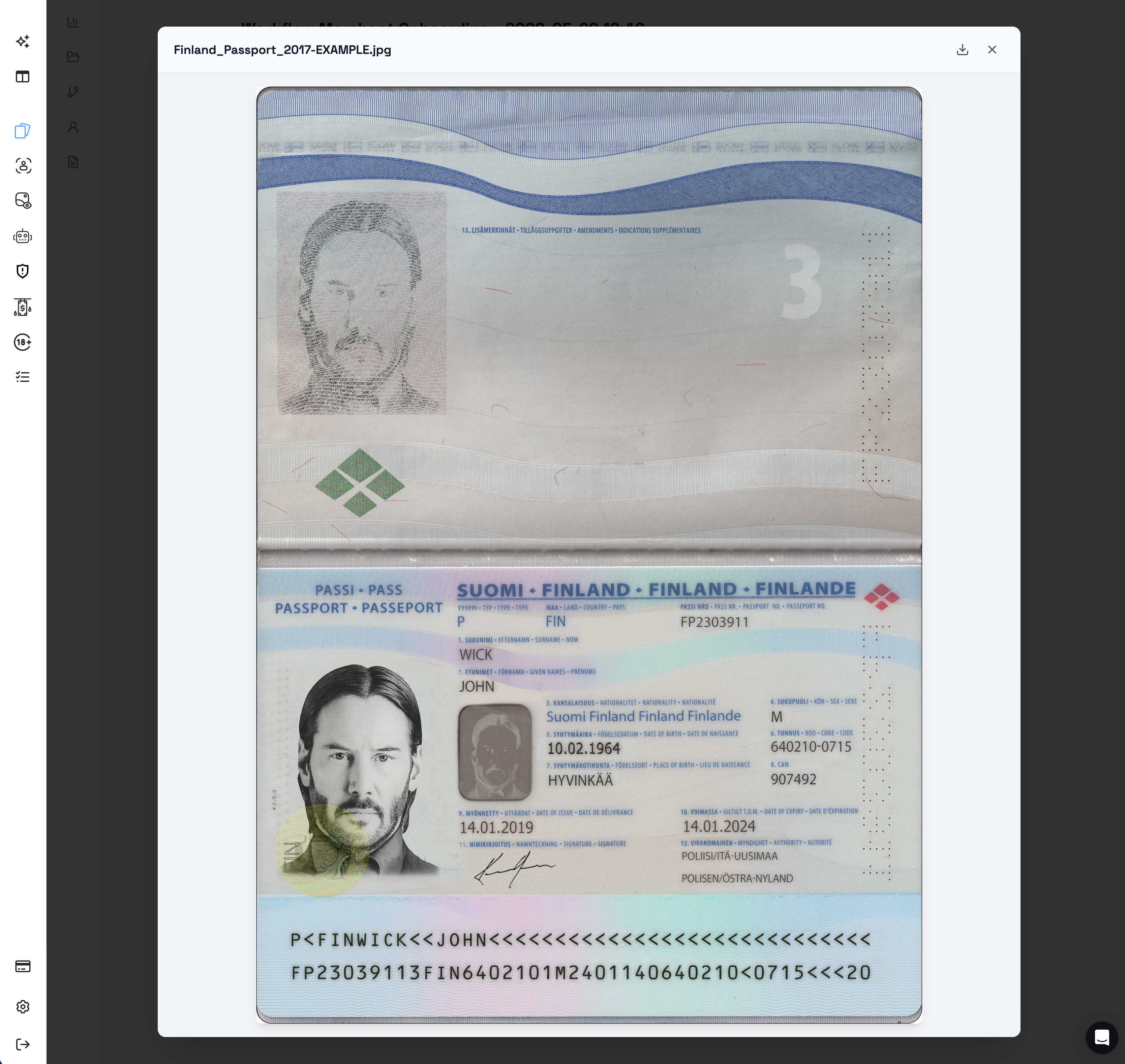
Extracted from the Passport below.
Extraction failures
Document Data Extraction does not block workflow progression.
If extraction partially fails, for example if one page in a multi-page PDF cannot be processed, that page is skipped without showing an error to the uploader.
If no extractable data is returned, the workflow continues without showing an OCR-specific error to the uploader.
OCR errors are logged internally. In the user-facing flow, the submission continues normally and no OCR-specific error message is shown to the uploader.
Save behavior
Changes made to Document Data Extraction only take effect after clicking Save Collection.
If fields are added, removed, renamed, or changed without saving the collection, the previous saved configuration remains in use.
Summary
- Document Data Extraction uses OCR technology to extract specified information from documents.
- Extracted values are saved as workflow variables.
- Document Data Extraction runs after AI Agent Validation and Fraud Detection.
- Document Data Extraction runs even if fraud detection fails and a retry is requested.
- Extracted data does not affect accept/reject decisions.
- Extraction failures do not block workflow progression.
- Extracted values are visible in the submission’s Data tab and on the individual document record.
- Variable names should be clear and specific.
- Changes only take effect after clicking Save Collection.
Updated 5 months ago