
Identity Verification
About Identity Verification
The Identity Verification node is used to verify a user’s identity within a workflow.
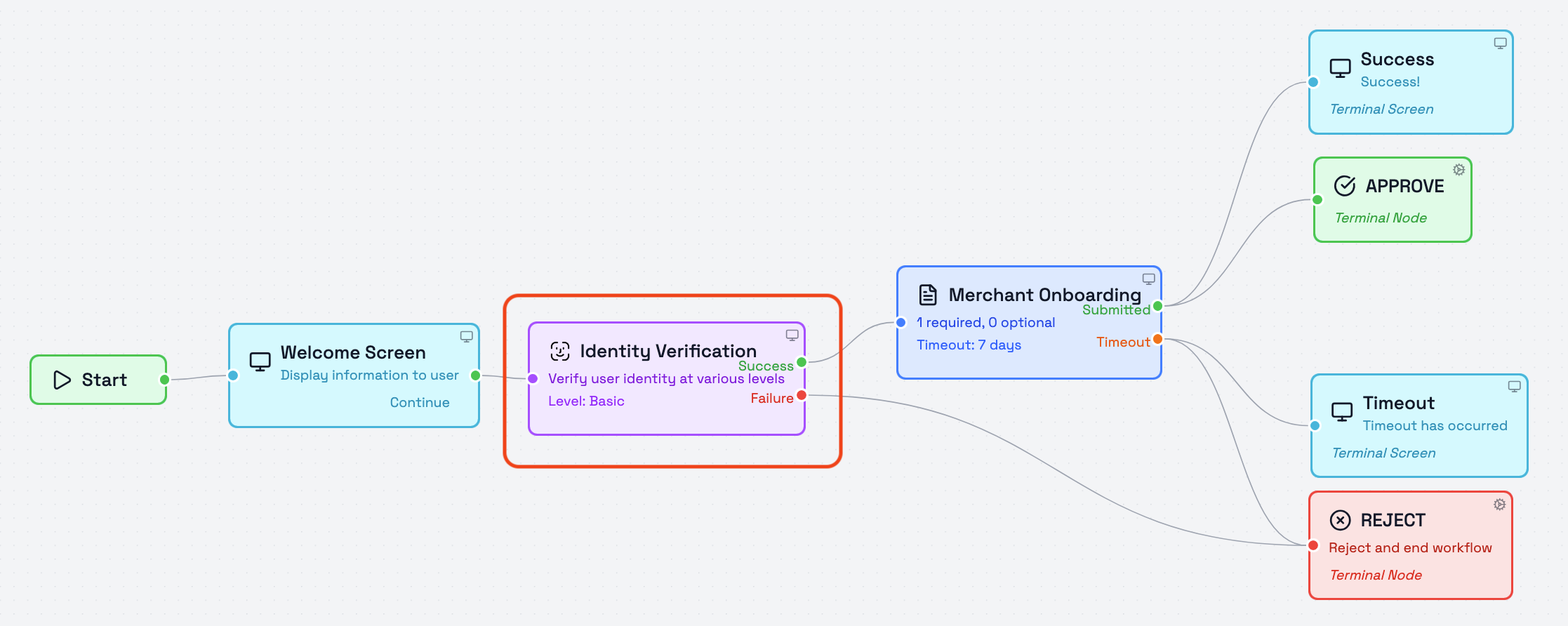
It is a user-facing node and is presented directly to the end user during the workflow. The node can be configured to apply different verification levels depending on how strict the verification process needs to be. Identity Verification is a user-facing node that pauses the workflow and presents the verification interface to the user. The workflow continues only after the user completes or skips the verification step."
How Identity Verification works
When the workflow reaches this node, the user is asked to complete the configured identity verification step.
The node then returns the workflow through one of its available output paths depending on whether verification was completed successfully or failed.
If enabled, users see an additional skip option alongside the verification interface. Selecting skip routes the workflow through the Skip path instead of Success or Failure.
Verification Levels
The node currently supports the following verification levels:
- Basic – Email and phone verification
- Standard – Basic + government ID check Requires the user to upload or capture a photo of their government-issued ID.
- Enhanced – Standard + address verification Requires the user to provide proof of address, such as a utility bill.
- Premium – Enhanced + biometric verification Requires the user to complete a biometric verification step, such as taking a photo of themselves.
The selected verification level determines which verification checks are included in the identity verification step.
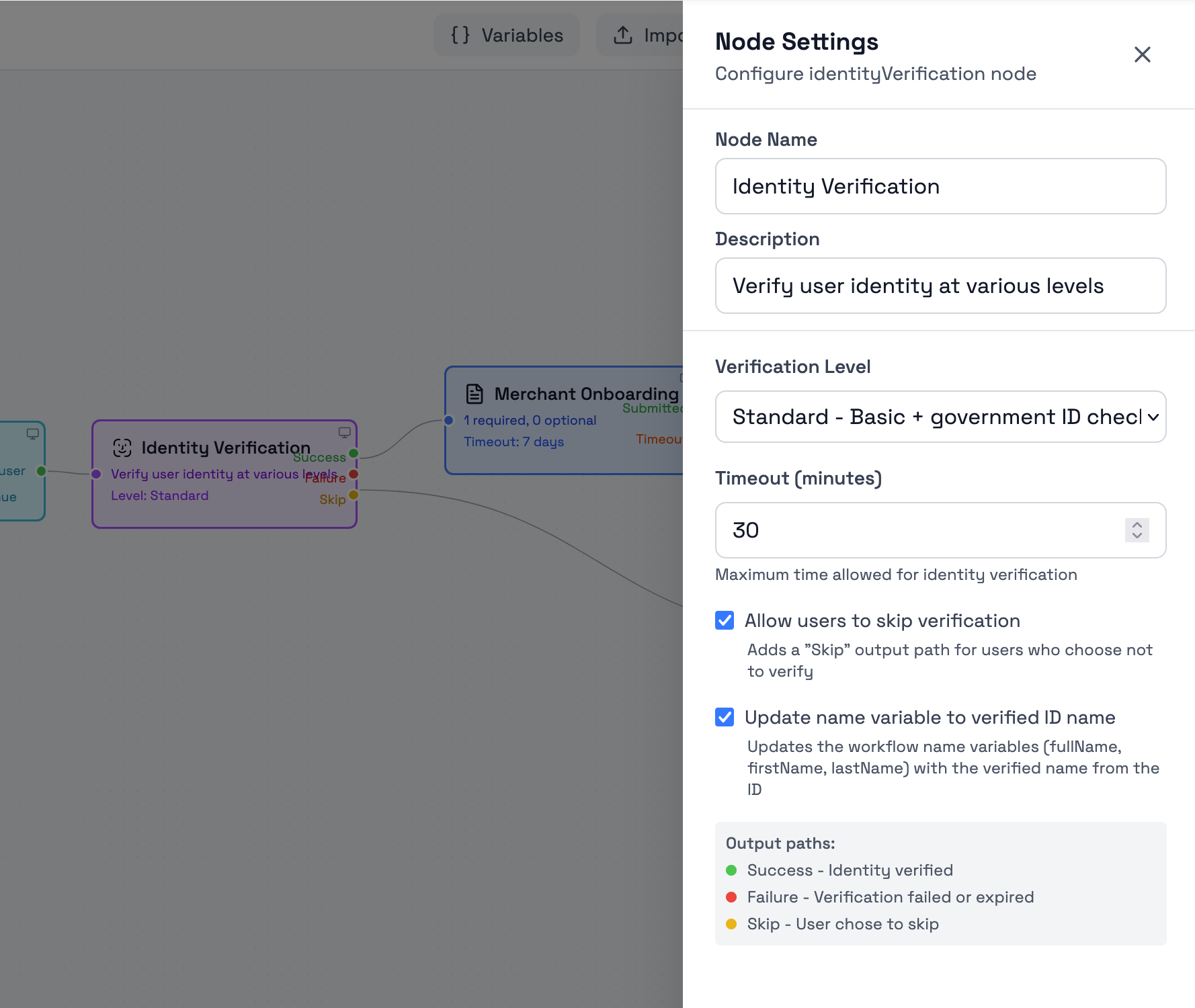
Settings
The node currently includes the following settings:
- Node Name
- Description
- Verification Level
- Timeout (minutes)
- Allow users to skip verification
- Update name variable to verified ID name
Timeout
The timeout setting defines the maximum time allowed for the identity verification step.
If the verification is not completed within that time, the node returns a failure outcome.
Allow users to skip verification
If enabled, the workflow includes a skip output path for users who choose not to complete the verification step.
Update name variable to verified ID name
If enabled, the workflow name variables are updated using the verified name returned from the ID.
This updates:
- fullName
- firstName
- lastName
Output Paths
The node includes the following output paths:
- Success – Identity verified
- Failure – Verification failed or expired
If Allow users to skip verification is enabled, an additional path is also available:
- Skip – User chose to skip verification
If Allow users to skip verification is enabled, a skip path is also added.
These outputs can be connected to different next steps depending on how the workflow should continue after verification.
Learn More
For more information about Bynn’s broader identity verification capabilities and KYC workflow setup, see:
Updated 4 months ago